Connecting Data Studio to Kaivo
This article is a step-by-step guide on how to connect Kaivo to Data studio.
Written By Essi
Last updated 3 months ago
Follow these steps to connect your Data Studio to Kaivo platform.
Step 1 — Sign in to Data Studio
Sign in to Data Studio at datastudio.google.com with your Google account.
Step 2 — Create a new report
In the top left corner, click Create, then select Report.

Step 3 — Enter your basic info
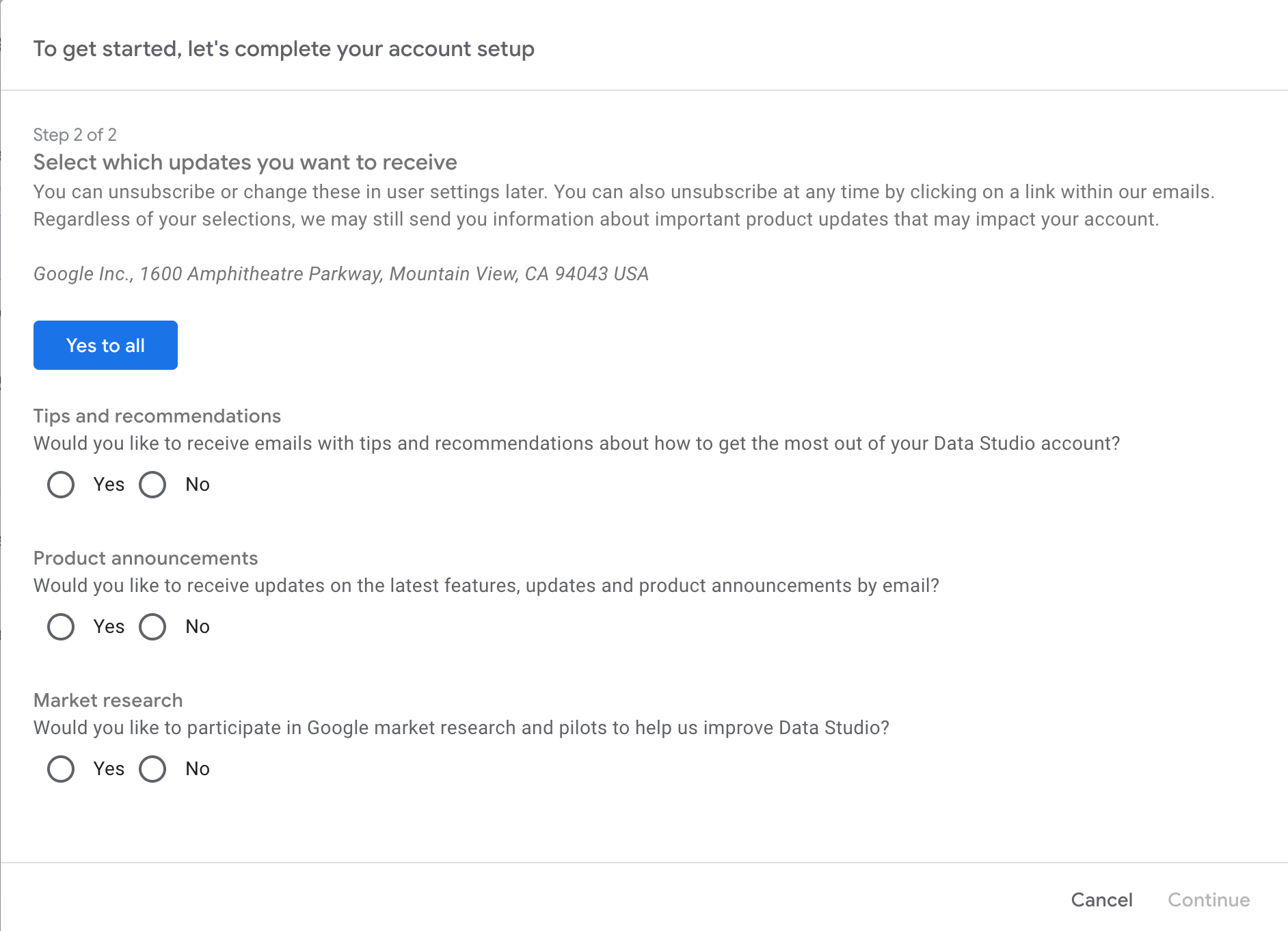
Provide your basic information if prompted by the platform.

Step 4 — Select BigQuery from the list of connectors
A report editor and the "Add data to report" panel will open. Select BigQuery from the connector list.

Step 5 — Authorize the connection
Data Studio requires authorization to connect to your BigQuery projects. Click Authorize and then choose the account that is associated with Kaivo.

Step 6 — Select your cloud project
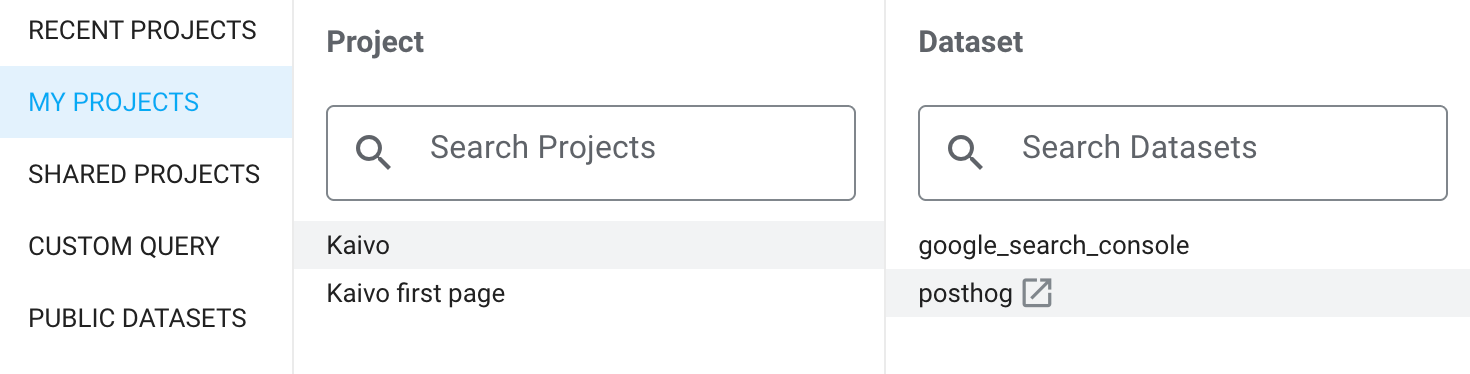
Choose the specific Google Cloud project associated with your Kaivo data warehouse. Check my projects and shared projects tabs for Google Cloud projects you have access to.

Step 7 — Select a dataset
Select the dataset you want to use. Each data connector has its own dedicated dataset.
Step 8 — Select your data table
Select the table you want to use and click Add.

Step 9 — Start editing
Your data is now ready to use. You can start building and editing your report immediately!