Managing connectors
This page is a guide on how to manage your existing data connectors in Kaivo like on how to edit the data sync schedule or how to access BigQuery through Kaivo UI.
Written By Essi
Last updated 3 months ago
How to Edit a Data Sync Schedule
Follow these instructions to set or update the daily automated data fetch time for your data connectors.
Step 1: Select Your Data Connector
Navigate to the Data connectors tab in the left-hand sidebar menu.
Locate the specific data source you want to update (for example, Company sales statistics) and click on it to open its details page.
Step 2: Open the Action Menu
On the data connector’s details page, look at the top right corner.
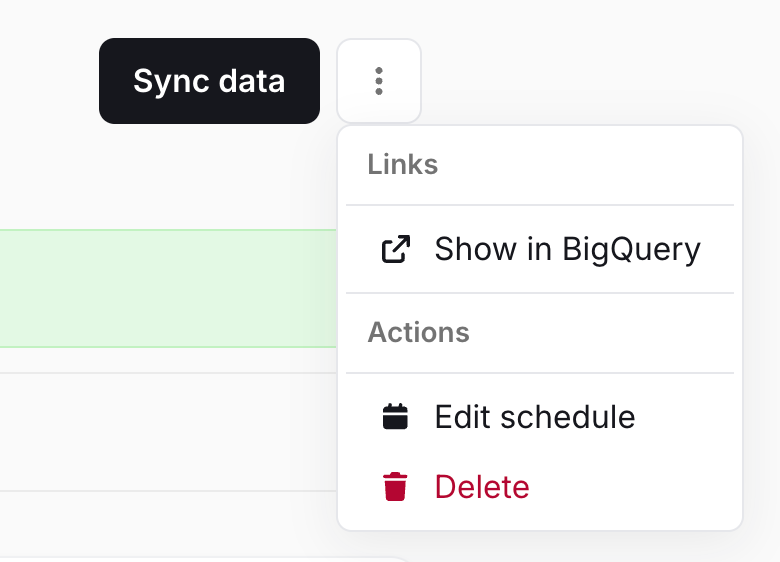
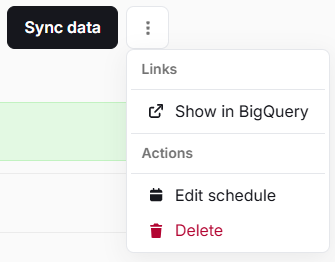
Click the three-dot menu icon (⋮) located right next to the Sync data button.
Select Edit schedule from the dropdown menu options.
Step 3: Configure the Sync Time
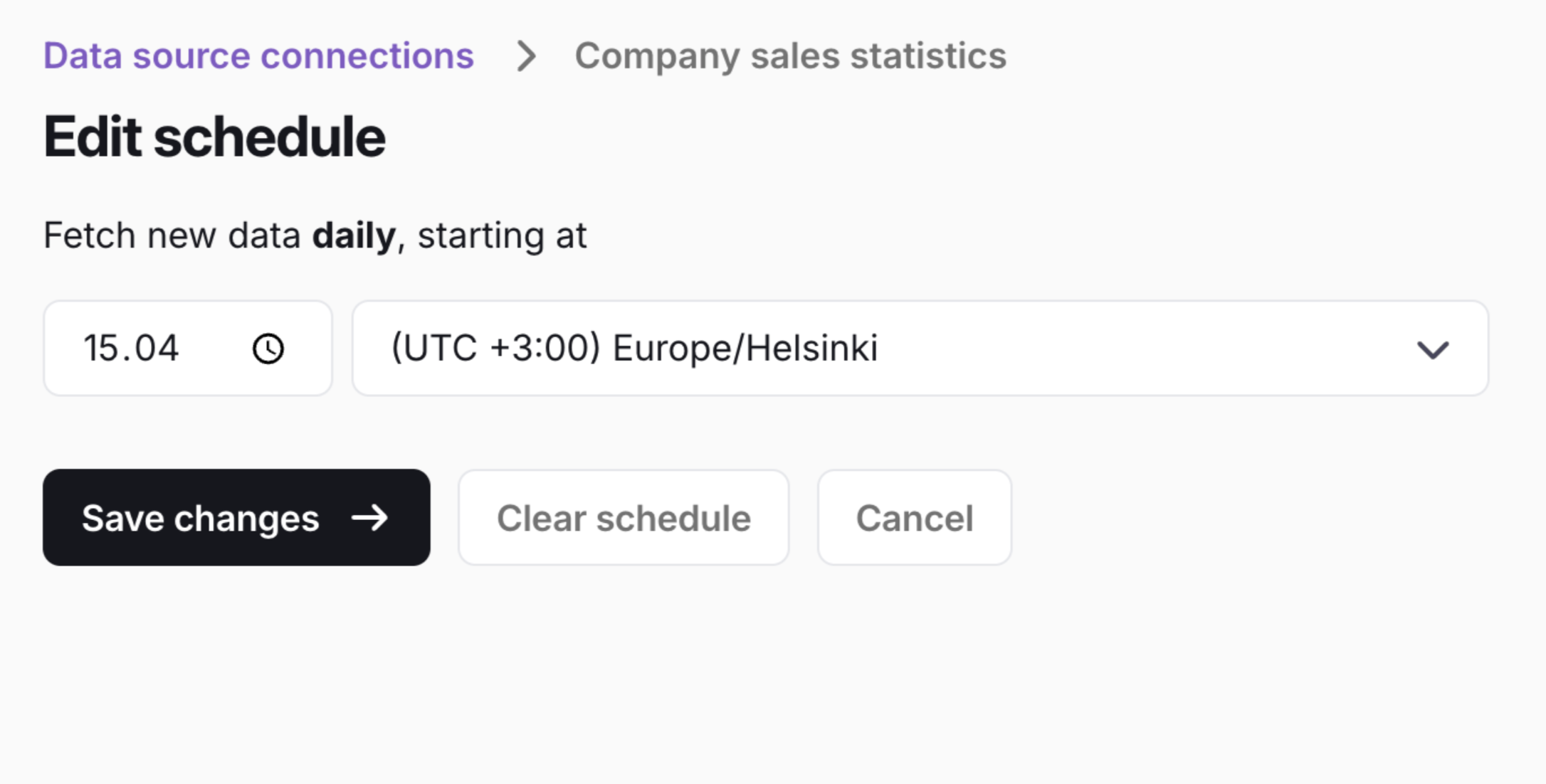
In the Edit schedule screen, locate the time input field under "Fetch new data daily, starting at".
Click the time field (
--.--) and enter your preferred execution time.Confirm that the correct time zone is selected in the dropdown menu (e.g., UTC +3:00 Europe/Helsinki).
Step 4: Save Your Changes
Click the black Save changes button to apply the new schedule.
Success! Once saved, a green Schedule updated! alert will appear in the top-right corner, and the main details page will now reflect your active timeline under Sync schedule (e.g., daily at 15:04).
How to Remove a Scheduled Sync
If you no longer want a data connector to refresh automatically on a daily basis, you can clear its schedule by following these steps:
Step 1: Open Your Data Connector
Navigate to the Data connectors tab in the left sidebar.
Click on the specific data source you wish to change (e.g., Company sales statistics).
Step 2: Access the Schedule Editor
On the connector's detail page, click the three-dot menu icon (⋮) located next to the Sync data button in the top right corner.
Select Edit schedule from the dropdown menu.
Step 3: Clear the Schedule
In the Edit schedule screen, locate the buttons below the time configuration.
Click the white Clear schedule button (located between Save changes and Cancel).
Success! You will be redirected back to the details screen, where a green banner will confirm "Data sync schedule cleared!". The schedule card will now display Sync schedule: not set, meaning the data will only sync when you trigger it manually.
How to Access BigQuery from Kaivo
Follow these steps to open and view your data connector's database inside Google BigQuery:
Step 1: Select Your Data Connector
Navigate to the Data connectors tab in the left-hand sidebar menu.
Click on the specific data connector you want to view.
Step 2: Open the Options Menu
On the data connector’s details page, look at the top right corner.
Click the three-dot menu icon (⋮) right next to the black Sync data button.
In the dropdown menu under the Links section, click Show in BigQuery.
Note: Clicking this will open a new tab and redirect you straight to the corresponding dataset within the Google BigQuery console.